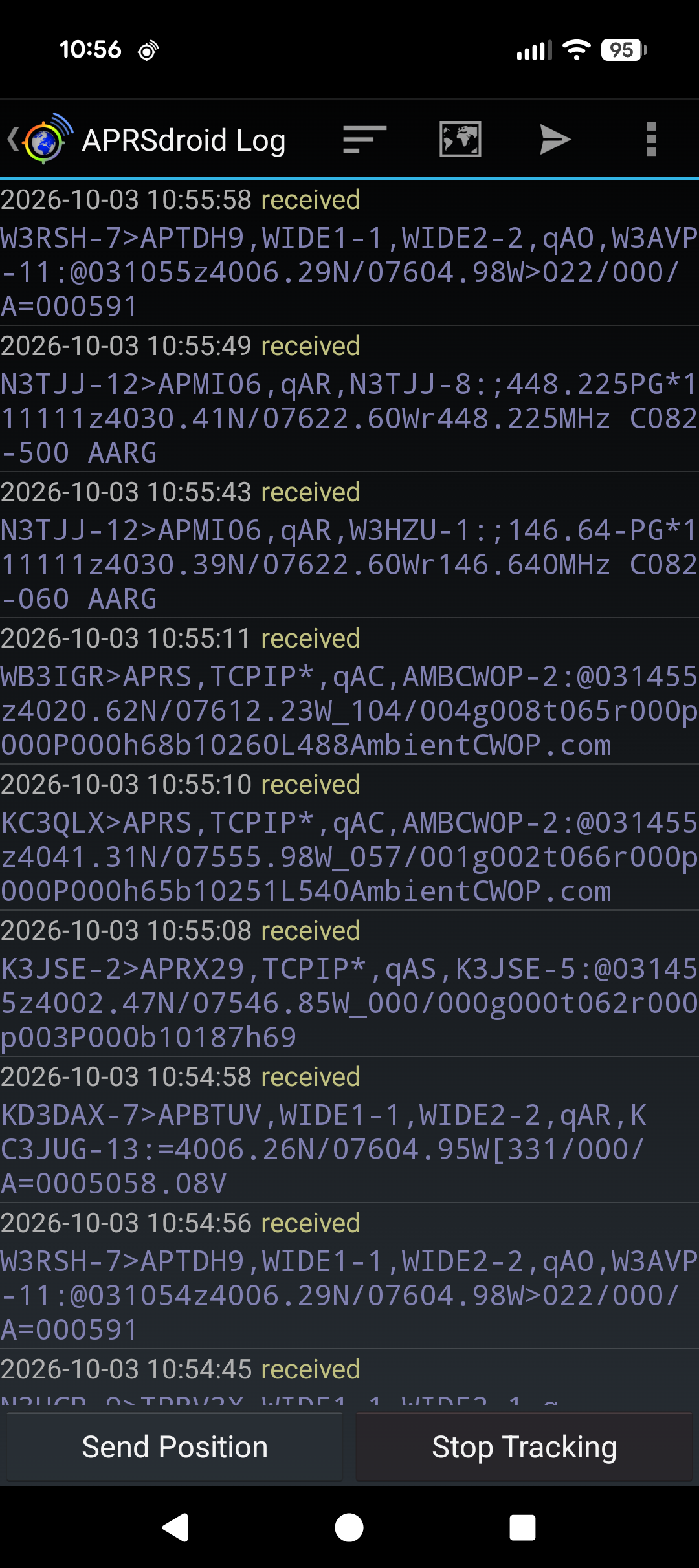
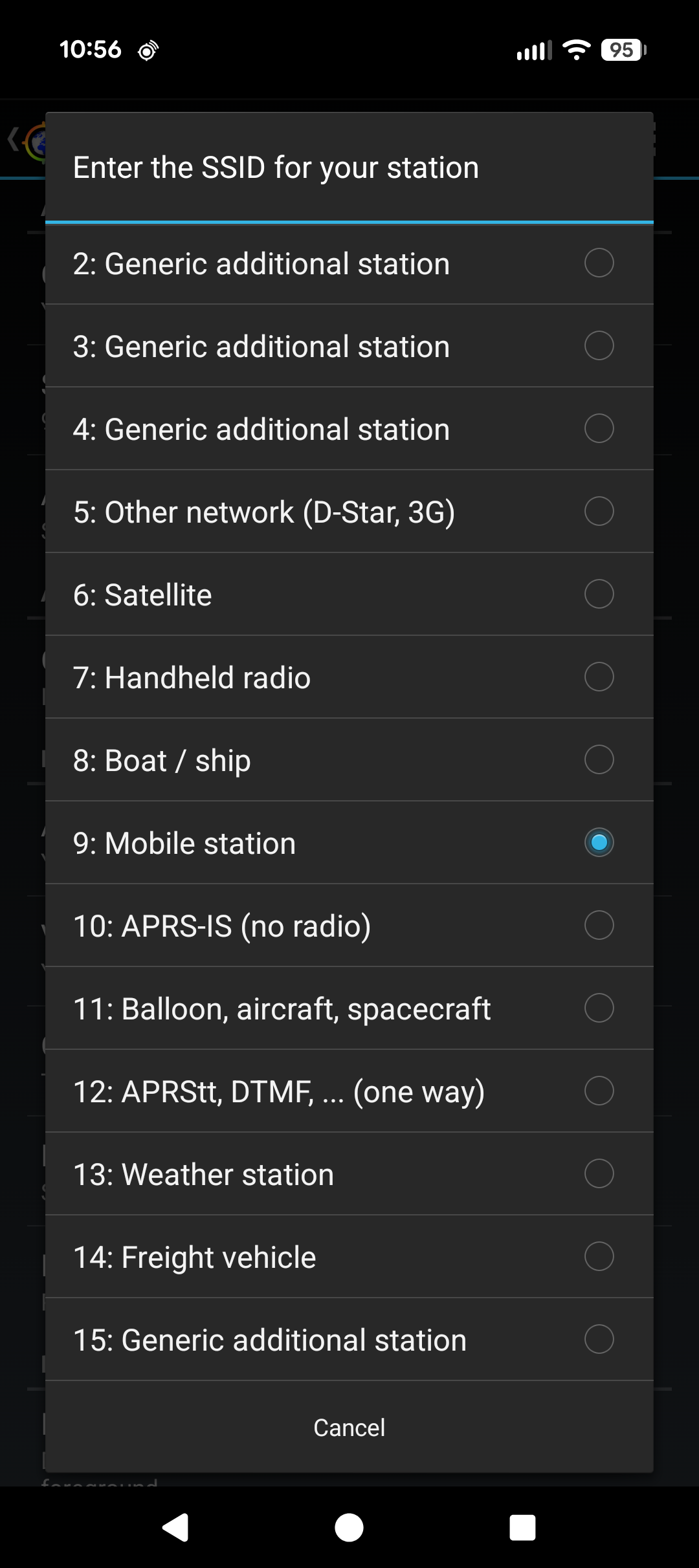
APRSdroid is a free Android app that sends your position as APRS reports. It works with only the phone and its data connection; no radio is needed. The K1RZ / W3SZ map shows any APRS station whose SSID is 9 and whose comment contains the word "rover".
A rover stays on the map for 30 minutes after its last position report. The settings below make the phone report at least every 10 minutes, even while you are parked at a grid corner.
Get it from the Google Play Store (search for "APRSdroid") or from the APRSdroid website, aprsdroid.org.
Open the menu, then Preferences. Under APRS Settings:
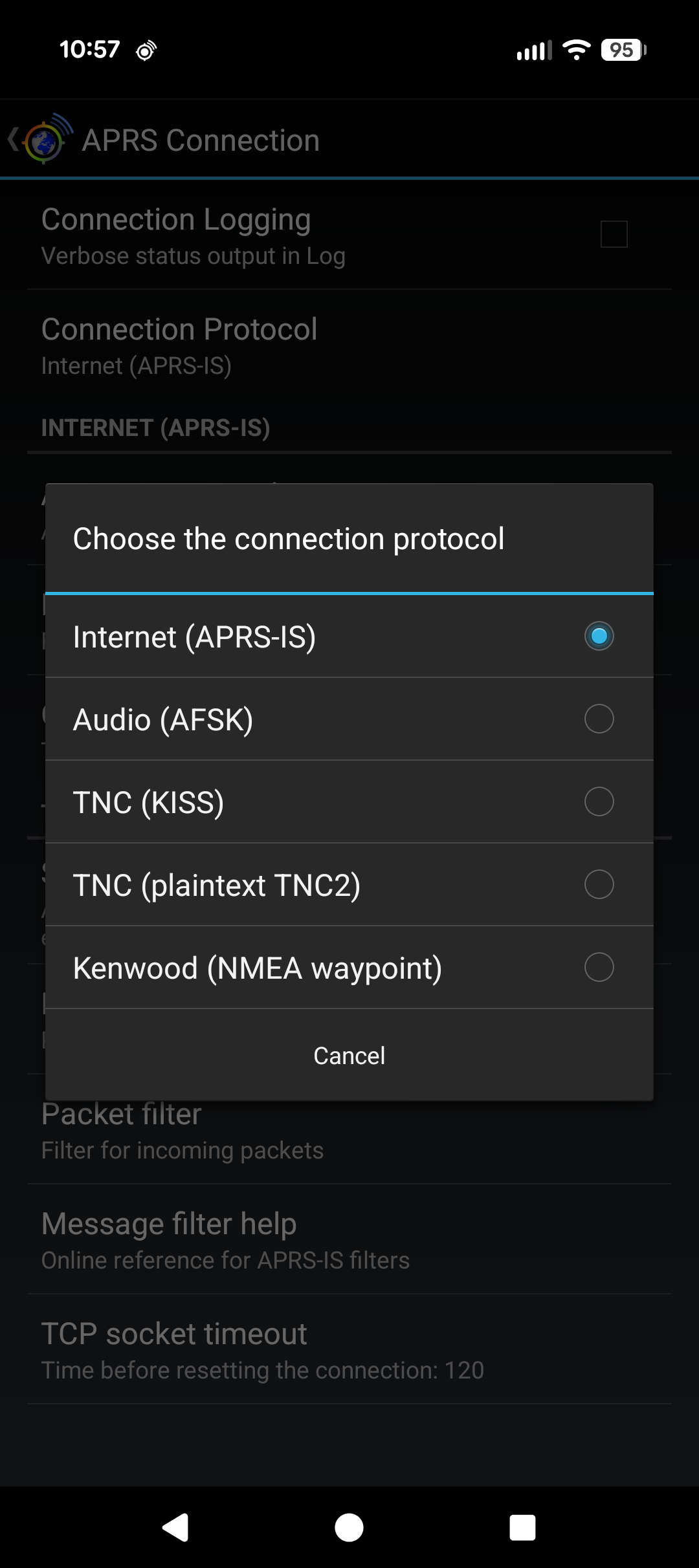
Under APRS Connection, set Connection Protocol to Internet (APRS-IS) if you are using the phone alone. Then, in Connection Preferences, enter your APRS-IS Passcode. If you don't have one, use Request Passcode there. Without a valid passcode your reports are not passed on and you will not appear on the map.
(If you connect the phone to a radio or TNC instead, choose that connection type; the rest of this page still applies.)
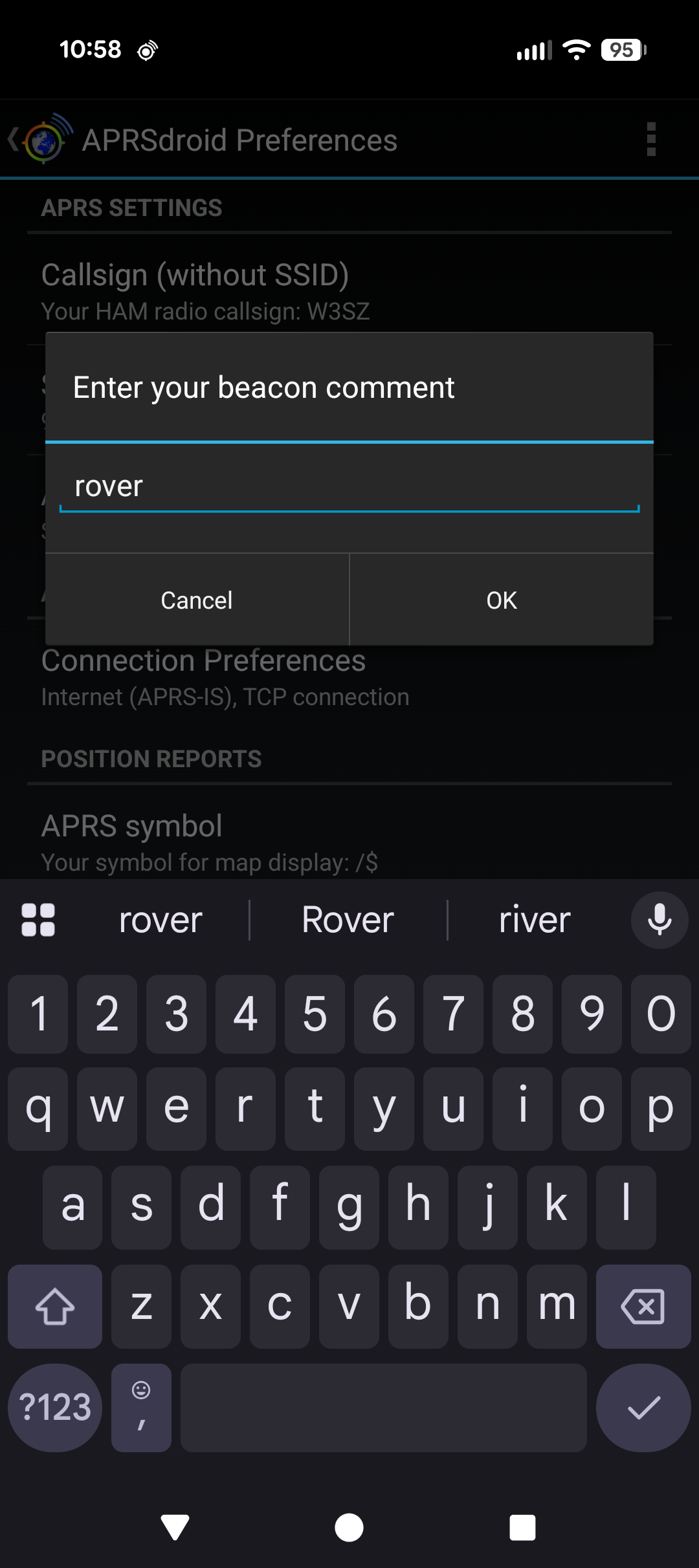
Under Position Reports, set Comment field to include the word rover (upper or lower case), for example "rover 10 GHz". You can also pick a car under APRS symbol if you like.
Under Position Reports, open Location Source. It has three choices:
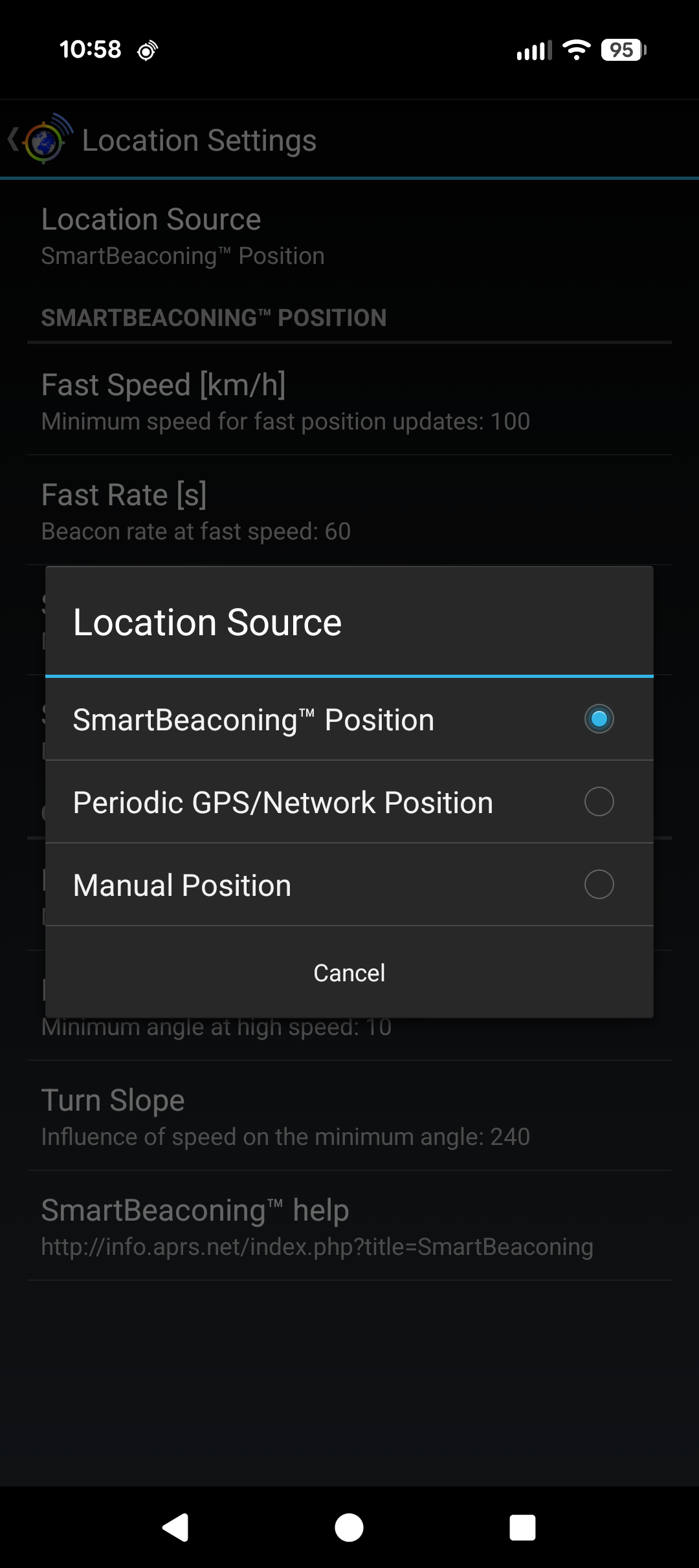
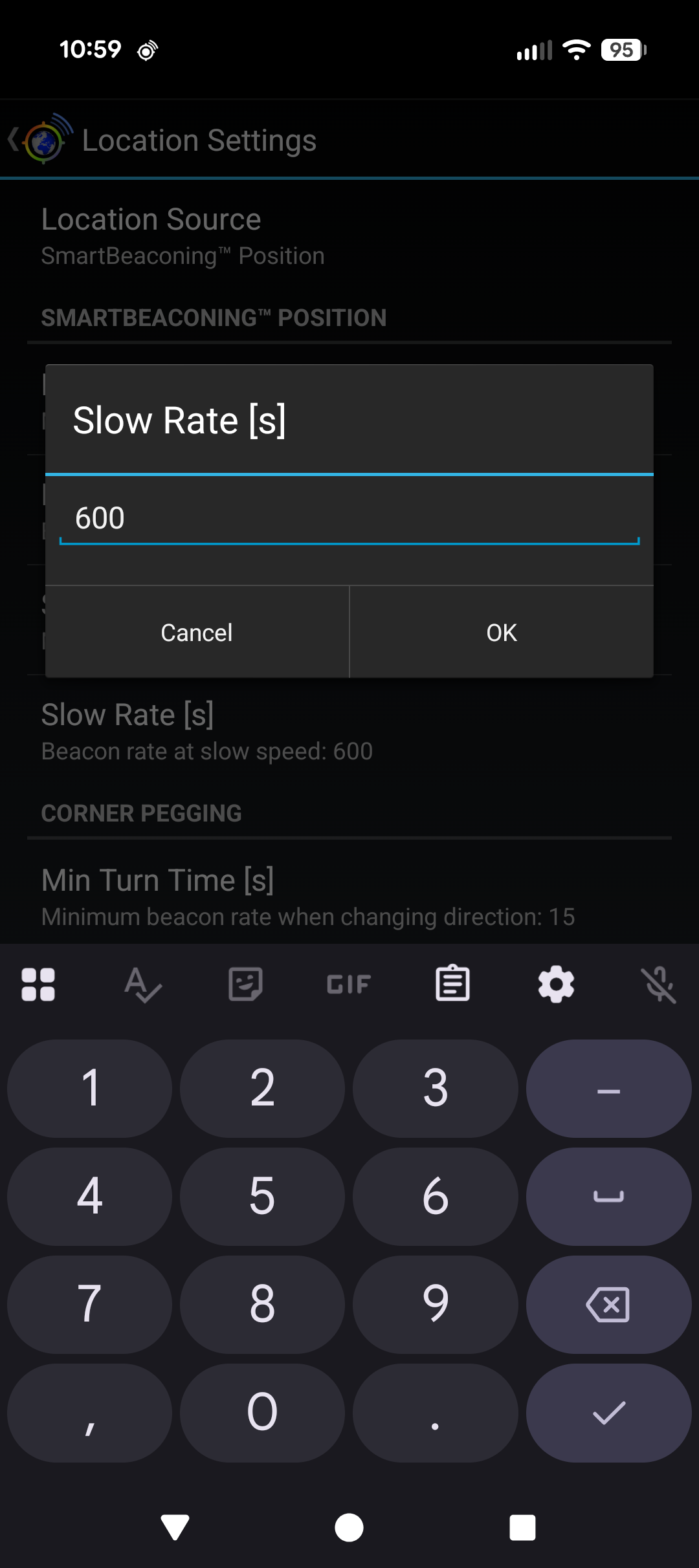
Under Privacy, make sure Position Ambiguity is off (no reduced precision). Otherwise the map shows you in the wrong place.
Go back to the main screen and tap Start Tracking. When Android asks, allow APRSdroid to use your precise location, and turn off battery optimisation for APRSdroid, so that Android does not stop it when the screen is off.
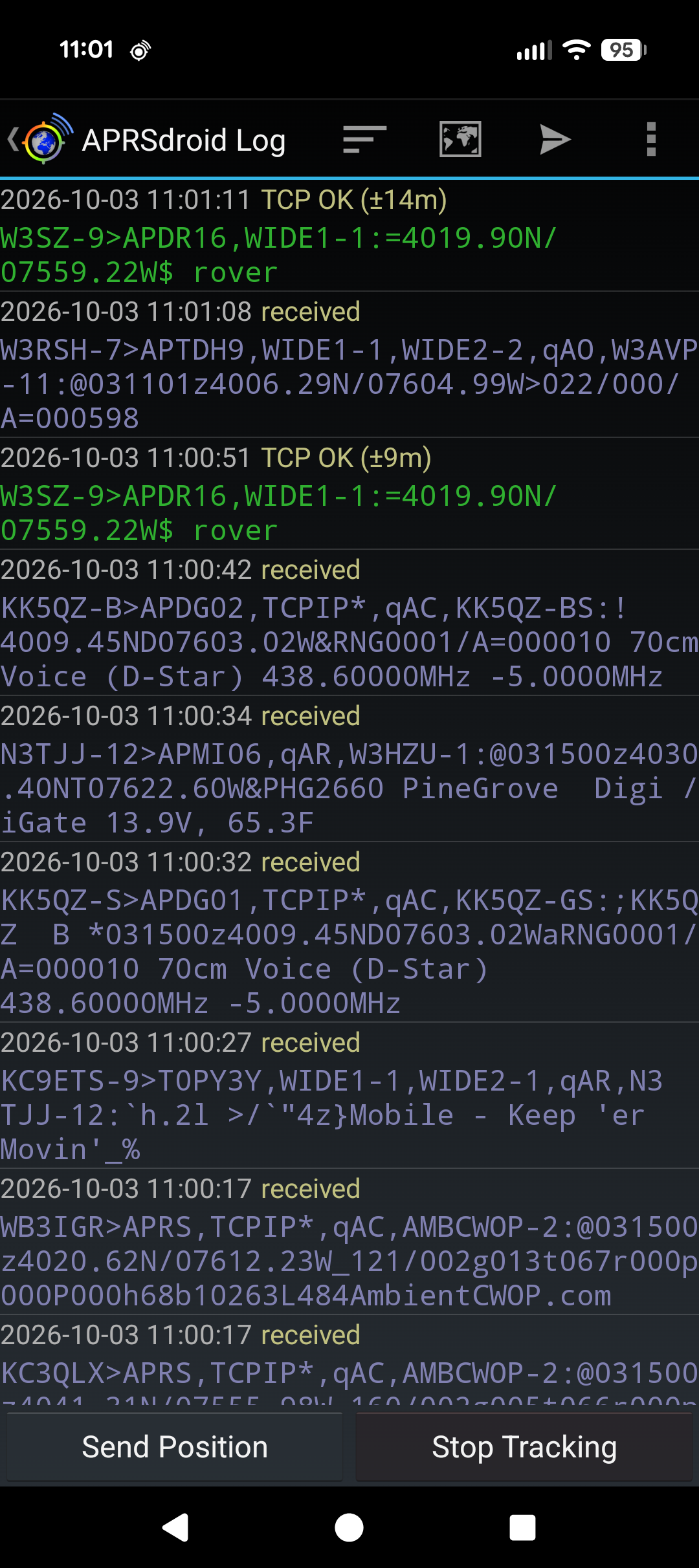
Within a few minutes your callsign, with "/R" added (for example W3SZ/R), should appear on the map. If it doesn't, check that the SSID is 9, the comment contains "rover", and the passcode is correct.